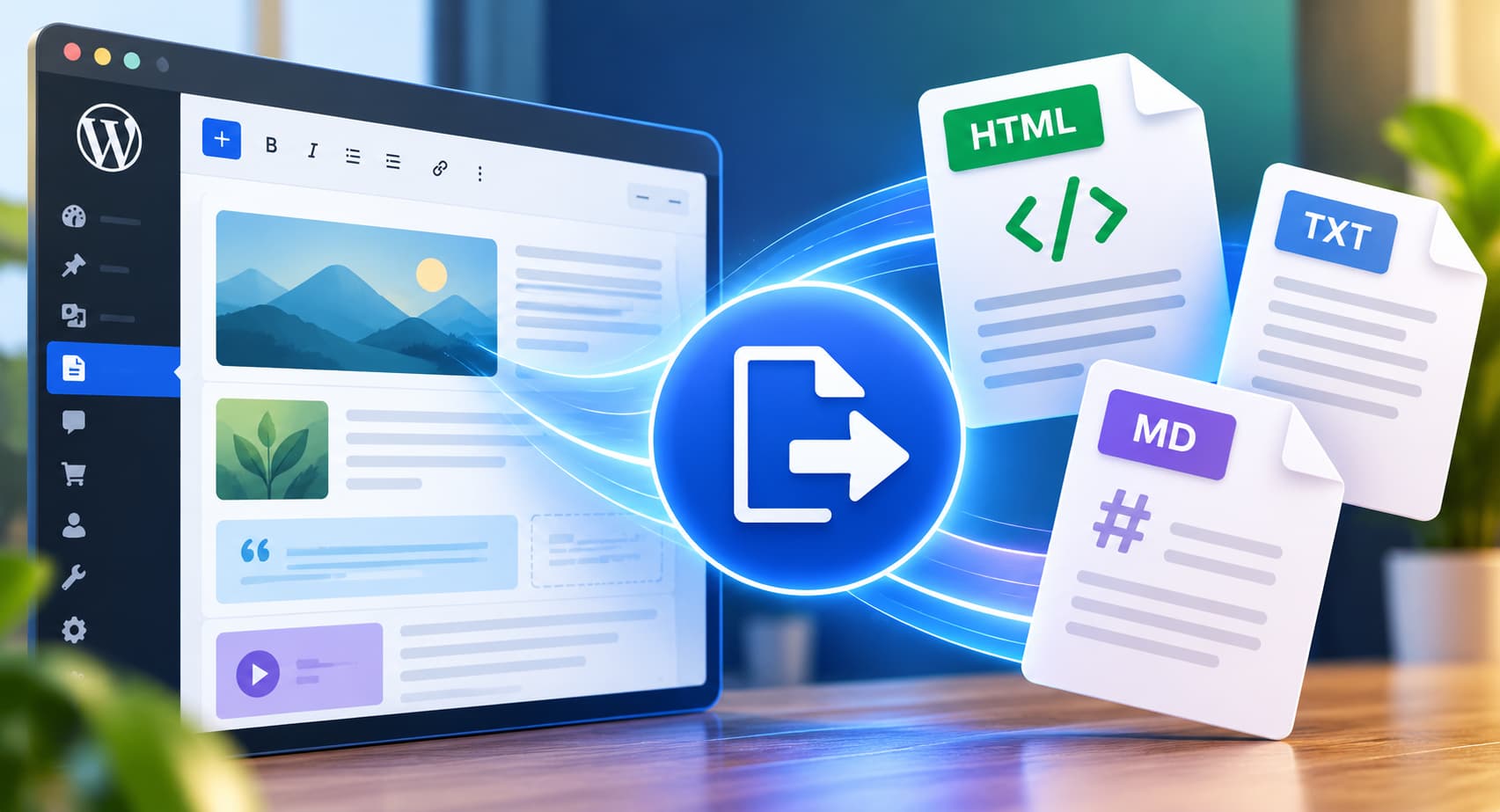
Get the plugin:
Detailed steps
- Install and activate the plugin
- Open the Pages/Posts list and select targets
- Choose export format (HTML/Text/Markdown)
- Preview a sample for structure and links
- Export and drop into your editor or pipeline
Google Docs hygiene
Paste as plain text, then apply Docs styles for consistent H2/H3 and lists.
Quality tips
- Keep headings semantic (H2/H3) for scanability
- Verify internal links and key CTAs remain intact
- Document the export workflow so teams can repeat it
NonStop Content Exporter · Also on WordPress.org
Step‑by‑step
- Install and activate the plugin
- Open the page(s) you want to export
- Choose your format: HTML, Plain Text, or Markdown
- Download or copy to clipboard
- Paste into your editor or workflow
Google Docs without the mess
Paste plain text to avoid odd fonts and inline styles, then format with Docs styles for a consistent look.
FAQ
- Does it work with page builders? Yes — Elementor, Divi, Gutenberg, and others.
- Can I bulk export? Yes in Pro; Free supports per‑page.
- Will styles be copied? The goal is clean content, not theme layout.
Get the plugin: NonStop Content Exporter · Also on WordPress.org